While it’s not recommended to modify the hidden files and folders, if you are a pro user, you may still want to do so regardless of the outcome. Here’s how you can view hidden files and folders on your Android.
1. View Hidden Files Using Default File Explorer
The default file explorer of Android is quite effective and can show hidden folders.
1. Open the App drawer and then the File Explorer or File Manager.
2. Tap the three dots on the file explorer and select Settings
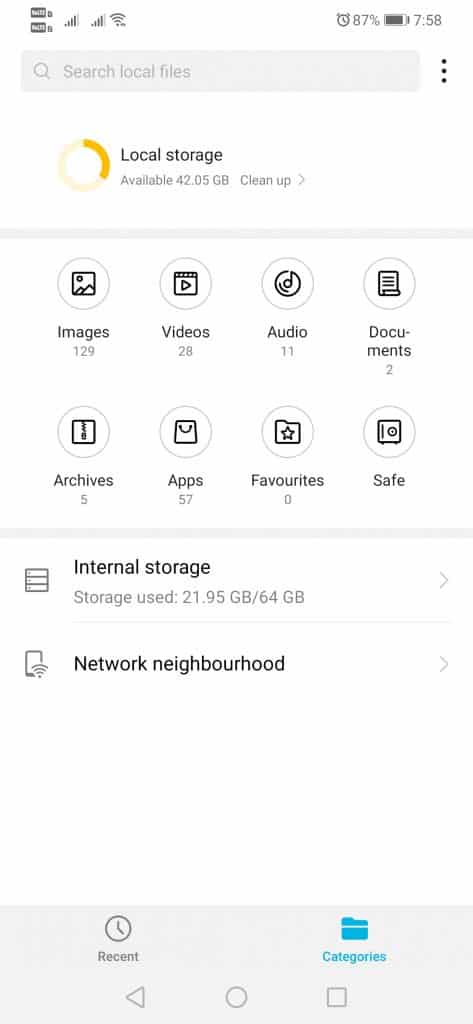
3. Find and enable the option Show Hidden Files.
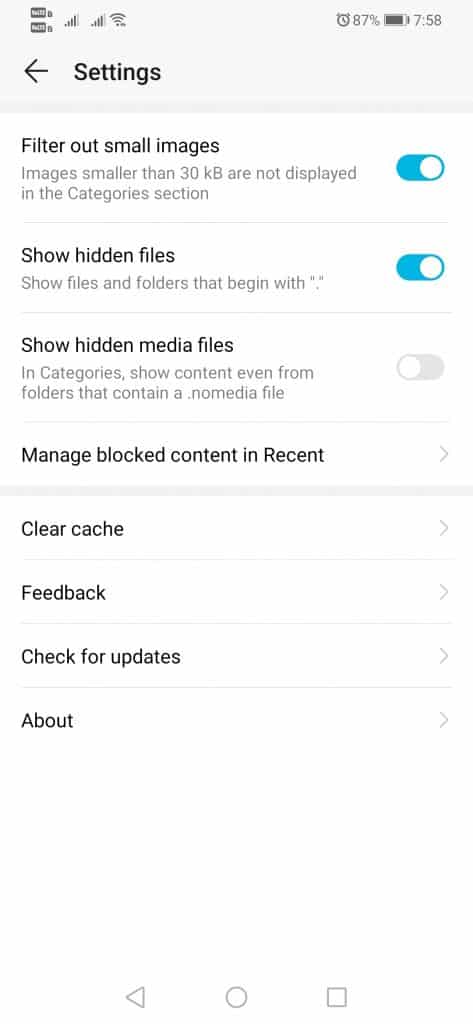
You can see the hidden files through the default file explorer. If your phone doesn’t have the option to show hidden files, you could follow the next methods.
2. View Hidden Files Using Files by Google
Files by Google is another great Android app that can view hidden files and folders.
1. Download and install the Files by Google on your Android.
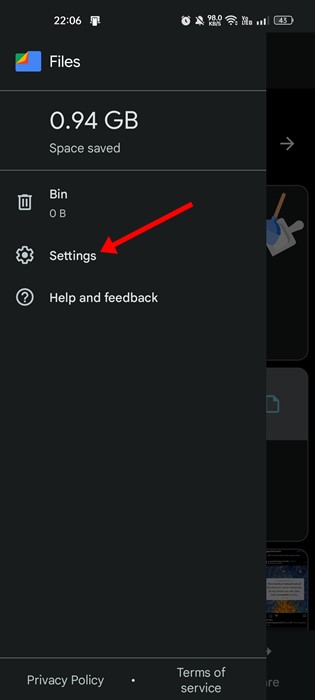
2. Open the app and tap on the hamburger menu.
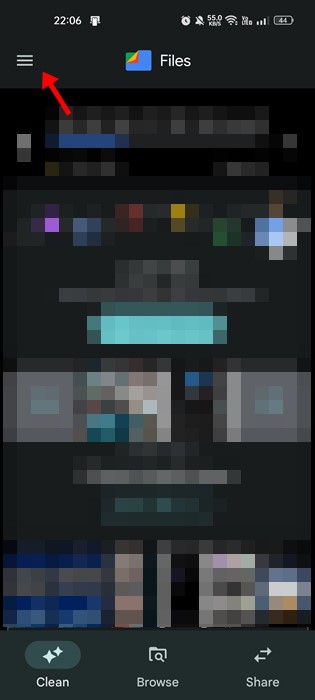
3. On the list of options that appears next, tap Settings.
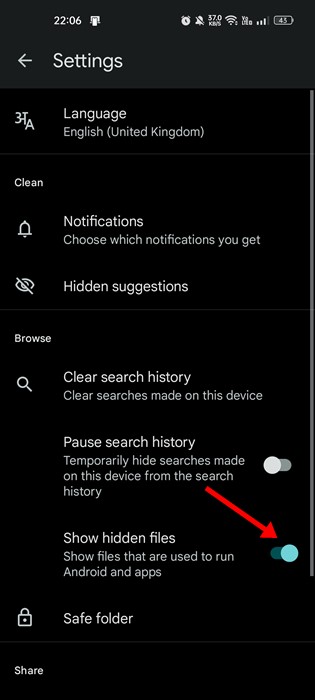
4. Scroll down and enable the toggle for Show hidden files
3. View Hidden Photos on Android (Gallery)
Some gallery apps for Android allow you to hide photos and videos. Hence, if you have hidden photos & videos from your Gallery app, you can follow these steps to unhide them.
Note: The steps may vary depending on the phone you are using. Some Gallery apps may not have the feature to hide/unhide the photos & videos.
1. Open the Gallery app.
2. Tap on the three dots.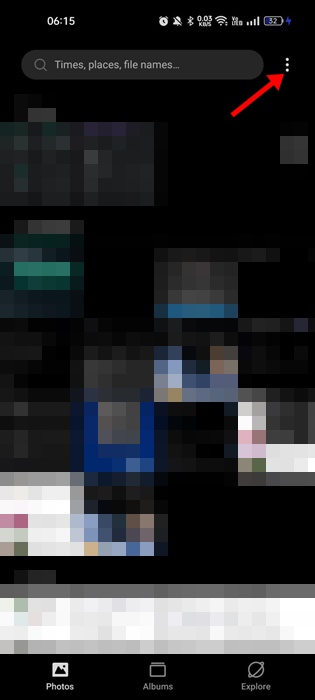
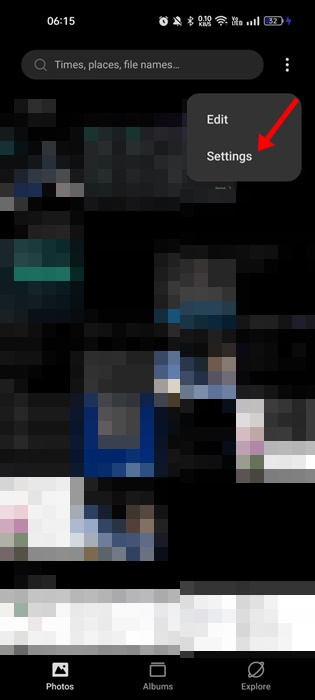
3. Select Settings.
4. Scroll down and enable the toggle for Show hidden album
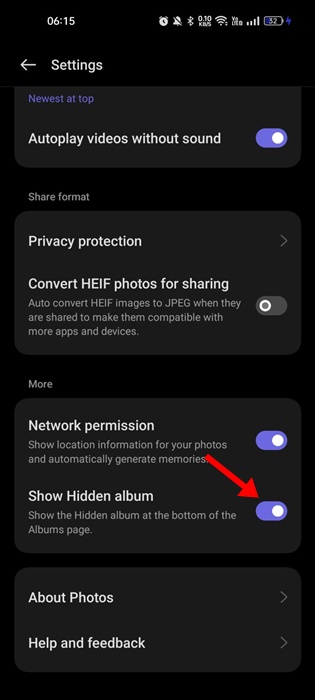
This will unhide the photos and videos on your smartphone. The hidden album is located at the bottom of the Albums page.
5. View Hidden Files on Samsung Galaxy Phone
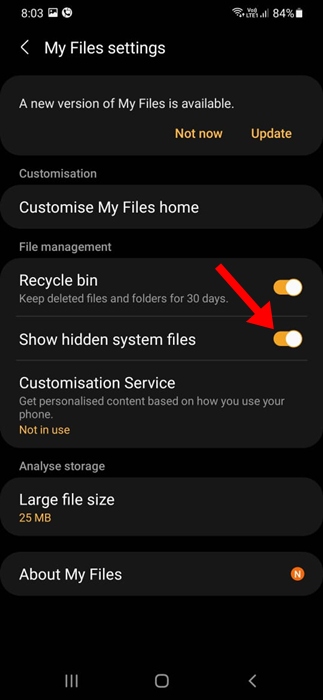
If you have a Samsung Galaxy phone, follow these steps to view the hidden files and folders.
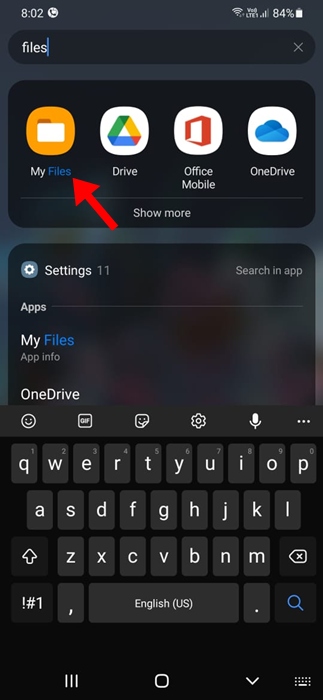
1. Launch the app drawer and open the My Files app.
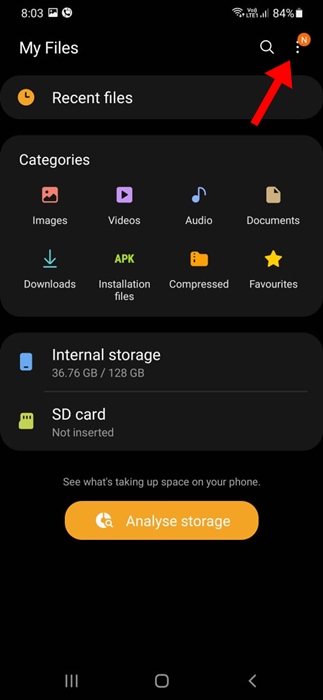
2. Tap the three dots.
3. Select Settings on the Menu that appears.
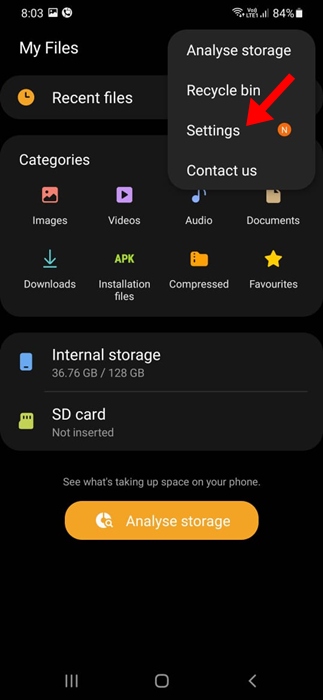
4. Enable the toggle for Show hidden system files.
If you use another file manager app like Files by Google, you need to follow the second method.
These are the best ways to view hidden files and Folders on Android. With this, you can easily manage and view all the hidden files and folders in your Android and remove the files that are just putting an extra load on your Android storage.